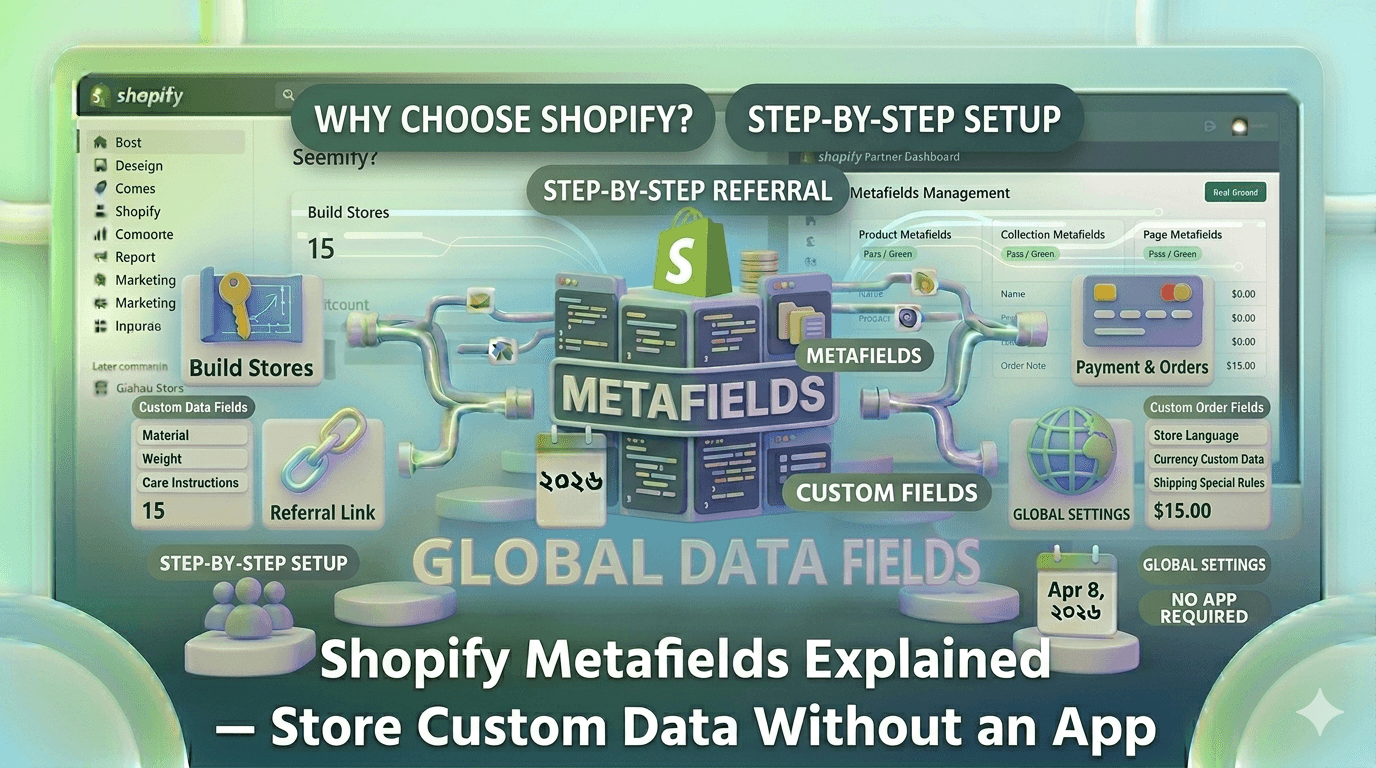
What Are Metafields — And Why Should You Care?
Every product in Shopify comes with standard fields: title, description, price, images. But what if you sell furniture and need to store "material", "weight capacity", and "assembly time"? Or you run a skincare store and want to display ingredients, skin type suitability, and dermatologist ratings?
That's exactly what Metafields solve. They let you attach any custom data to products, collections, customers, orders, blog articles, or pages — and then display that data anywhere in your theme using Liquid.
Before Shopify made metafields a native feature, merchants had to install paid apps just to get this functionality. Now it's built right in — and it's surprisingly powerful once you understand how it works.
Key Concepts: Namespace, Key, and Type
Every metafield has three parts you need to understand:
- Namespace — a grouping label you define (e.g.
custom,product_info,sizing). Think of it like a folder name. - Key — the specific field name within that namespace (e.g.
material,care_instructions,fit_type) - Type — the data format: single-line text, multi-line text, integer, decimal, true/false, date, file, URL, color, JSON, or a reference to another Shopify resource
To access a metafield in Liquid, you reference it like this:
{{ product.metafields.custom.material }}
{{ product.metafields.sizing.fit_type }}
{{ article.metafields.custom.reading_level }}
How to Create Metafield Definitions
Shopify separates metafields into two types: definitions (structured, validated fields you set up in admin) and unstructured (raw key-value pairs set via API). For most store owners, definitions are the right approach.
Step 1 — Open Metafield Definitions
In your Shopify admin, go to Settings → Custom data. You'll see sections for Products, Variants, Collections, Customers, Orders, and more.
Step 2 — Create a Definition
- Click Products, then Add definition
- Give it a name (e.g. "Material") — Shopify auto-generates the key
- Choose a namespace or accept the default
custom - Select the content type — for "Material", choose Single line text
- Click Save
After saving, that definition appears on every product edit page under a new "Metafields" section at the bottom. You can fill it in per product.
Displaying Metafields in Your Theme
Once you've filled in a metafield value on a product, you can display it in your theme two ways:
Option A — Theme Editor (No Code)
In the Shopify theme editor (Online Store → Themes → Customize), many sections let you connect a block to a metafield. Click on a text block, then use the "Connect dynamic source" icon (looks like a plug) to link it to your metafield. Shopify handles the output automatically.
Option B — Liquid Code
For full control, edit your theme files directly. Open sections/main-product.liquid and add:
{% if product.metafields.custom.material != blank %}
  <div class="product-material">
    <strong>Material:</strong>
    {{ product.metafields.custom.material.value }}
  </div>
{% endif %}
Note the .value at the end — when you use a metafield definition, Liquid returns a metafield object, not a raw string. You need .value to get the actual content.
Metafield Types You'll Use Most
- Single line text — Short strings: color name, material, brand
- Multi-line text — Longer content: care instructions, ingredients list
- True or false — Flags: "Is this organic?", "Handmade?"
- Integer / Decimal — Numbers: weight limit, serving size, dimensions
- Date / Date and time — Product launch dates, expiry dates
- File — Attach a PDF size guide or product manual directly to a product
- Reference — Link a product to another product, a collection, or even a metaobject
- Color — Store hex color values and render swatches without apps
Metaobjects — The Next Level
Metaobjects are like custom database tables inside Shopify. Instead of storing a flat text string for "Brand", you can create a Brand metaobject with its own fields: name, logo, founding year, country, description. Then link that metaobject to a product via a reference metafield.
This is how large Shopify stores build rich, structured data without a headless CMS. To create a metaobject definition, go to Settings → Custom data → Metaobjects.
Bulk-Editing Metafields
Filling in metafields one product at a time gets tedious fast. Shopify's built-in bulk editor helps. Go to Products → All products, select multiple products, click Edit products, then use Add fields to bring in your metafield columns. Edit them in a spreadsheet-like view and save in bulk.
For very large catalogs, you can also import/export metafields via CSV using apps like Matrixify, or via the Shopify Admin API if you're comfortable with REST or GraphQL.
Common Mistakes to Avoid
- Forgetting
.value: Metafield definitions return an object. Always use.valuewhen outputting in Liquid, or use a filter like| metafield_tagfor file/image types. - Using unstructured metafields for structured data: If you skip creating a definition, your metafield won't appear in the theme editor's dynamic sources and won't have validation. Always create definitions for data you'll display to customers.
- Overcomplicating namespaces: Stick to
customfor most things. Only create custom namespaces if you're building a public app and need to avoid conflicts.
Conclusion
Metafields are one of Shopify's most underused native features. Once you understand the namespace/key/type structure and know how to access values in Liquid, you can build remarkably rich product pages — size guides, ingredient lists, certifications, care instructions, linked accessories — all without a single third-party app.
Pro tip: Before reaching for an app that promises "custom product fields", check if native metafields can do the job. In 2026, the answer is yes more often than not.